|
|
Online Help |

| Help Table of Contents |
Analyzing Constituent Online Behavior in CMS
By tracking the way in which constituents view and interact with CMS pages, you can measure the performance of your site and tailor your communications to clients. You can track when a logged-in constituent:
- Visits a website
- Views a page
- Completes and submits an online form
- Submits a Create Content form to post content online (this feature will be available in an upcoming release)
- Submits a comment
- Sends a CMS eCard
- Sends a CMS page to a friend
Note: All interaction data is collected automatically in Constituent360 except for page views. To track page views, you must tag the pages you would like to track.
Reporting and querying on these behaviors allows you to do such things as manage constituent relationships, segment your constituents into groups to target for special communications and promotions, proactively identify situations that may require attention, and analyze your constituent base.
|
Example: Cooper is an analyst at the American Health Society (AHS) who would like to send fewer, more targeted appeal emails and increase donation response rates. To do this, he tags 4 CMS pages related to the "AHS Deconstruct Diabetes Prevention" campaign. After waiting 30 days, he determines that he has gathered a sufficient amount of interaction data. He creates a query to find every constituent who has the "diabetes" email interest, who has not donated to the campaign, who has visited the site more than 3 times in the last 30 days, and who has visited one or more of the tagged pages. His query identifies 1,453 constituents. He sends an email appeal to these constituents and also to a control group of 9,842 constituents. The members of the control group have the "diabetes" email interest and have not donated, but they have not visited the web site in the last 30 days and have not visited any of the tagged pages. One week later, he analyzes the responses and discovers a statistically significant higher donation rate from the 1,453 constituents than from the control group. By using CMS interaction data, he can send fewer overall appeal emails, which are more targeted, to reduce email list fatigue across his entire house file and improve response rates. |
This topic contains the following information:
- Viewing the Interactions in Constituent360
- Tagging Pages in CMS
- Running Queries on CMS Interactions
- Reporting on CMS Interactions
Viewing the Interactions in Constituent360
Interaction data is collected in Constituent360 and located on the Interactions and the Profile tabs. On the Interactions tab, you can filter the results by activity such as web page visit or eCard sent. In addition, three of the interactions have basic statistics on dates and counts and they are located on the Profile tab. These include:
- Site Visits - First and last visit dates, and previous, year-to-date, and lifetime counts
- Comments - Last date of comment, and previous, year-to-date, and lifetime counts
- Create Content Submission Form - Last date of form submission, and previous, year-to-date, and lifetime counts
This topic contains the following procedures:
- To view a constituent's CMS interaction data
- To view summary statistical data on site visits, comments submitted, and content posted
To view a constituent's CMS interaction data
- In Constituent360, open a constituent's profile.
- Click the Interactions tab.
- In the Select the
Interaction Types to Display for this Constituent list, select one
or more CMS interactions. Use the Shift and Control
keys to select multiple interactions. The CMS interactions all start with
"CMS", such as CMS Page Visit.
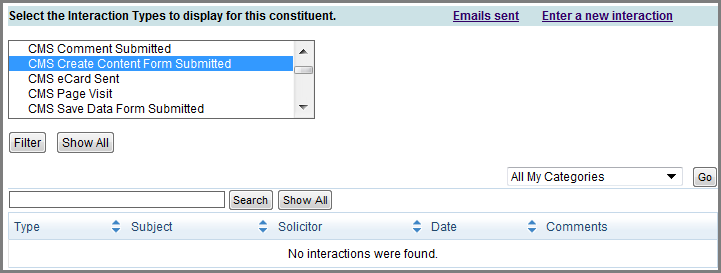
- Click Filter. The results display below the Filter button.
To view summary statistical data on site visits, comments submitted, and content posted
- In Constituent360, open a constituent's profile.
- Scroll to the bottom of the
Profile tab to see CMS Web Site Information.
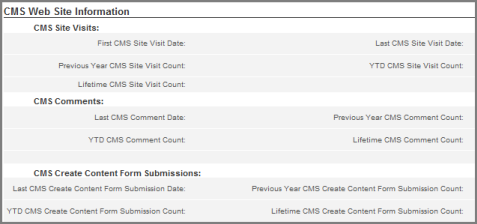
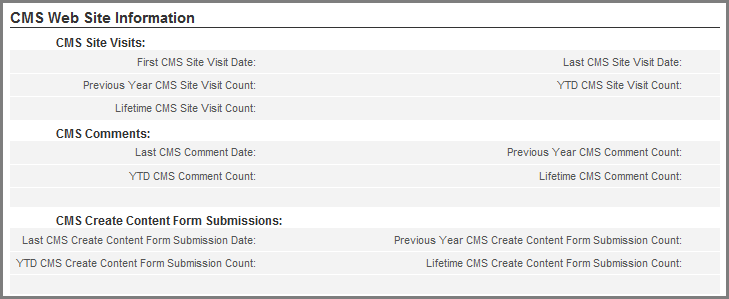
Note: If you do not see the CMS Web Site Information fields, it has not been configured for your site. Contact Convio Support to enable this feature.
Tagging Pages in CMS
In order for Constituent360 to log the number of times a constituent views a page, you must first tag the pages you want to track in CMS. Tagged pages expire after 60 days. All other interactions are logged automatically and require no tagging.
This topic contains the following procedures:
- In CMS, click Reports and Tools > All Reports and Tools....
- In the Design/Setup area, click Webpage Visit Interactions.
- In the Webpage Visit
Interactions page, click the Tag Page button
 .
The Website Explorer window displays.
.
The Website Explorer window displays. - Use the Browse, Search, or Recent tabs to locate a page.
- Click the title of the page and drag into the Select Pages to Tag pane.
- Add as many pages as you need and click OK.
- In CMS, click Reports and Tools > All Reports and Tools....
- In the Design/Setup area, click Webpage Visit Interactions.
- In the Webpage Visit
Interactions area, click to select a one or more pages (use the
Control or Shift keys to select multiple pages), and click the
Delete button
 .
.
Note: Do not to click the name of the page or the page's Properties Tab displays.
Running Queries on CMS Interactions
This topic explains how to query on CMS interactions; it does not explain how to use the Query Builder. For detailed information on using the Query Builder, refer to Working with Query Builder.
This topic contains the following procedures:
- To run a query on the total number of website visits
- To run a query on basic interaction types (except website visits)
- To determine Item IDs for querying basic interaction types
- To run summary statistical data on site visits, comments submitted, and content posted
To run a query on the total number of website visits
- In the Convio Administration menu, click Data Management > Query. The Query List page displays.
- Click Create a New Query. The New Query page displays.
- Enter a name and description, and select a security category.
- Click Save. The Query Details page displays.
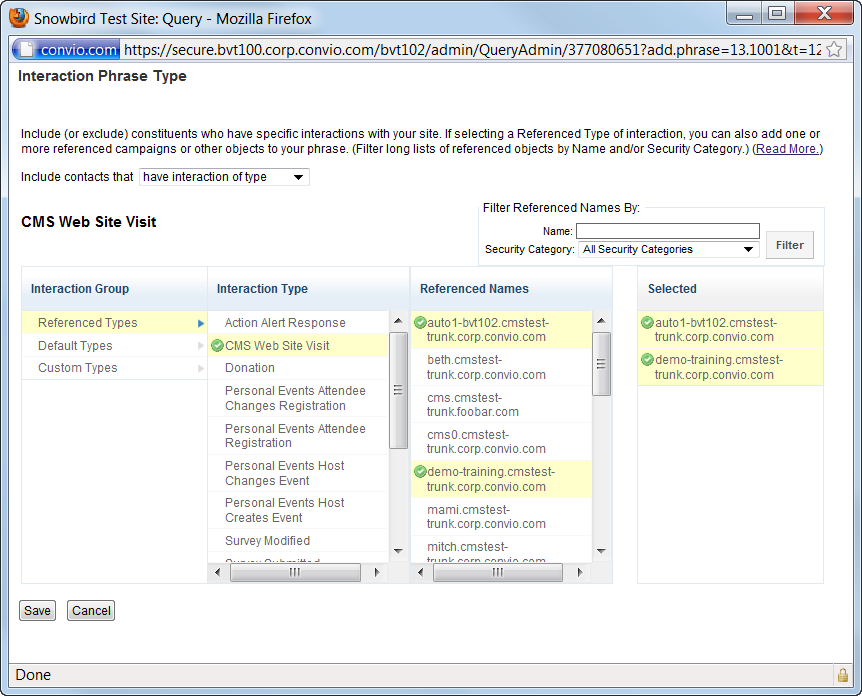
- Click the Add an Interaction Clause button. The Interaction Phrase Type dialog displays.
- In the Interaction Group column, select Referenced Types.
- In the Interaction Type column, select CMS Web Site Visit.
- In the Referenced Name column, select one or more host names.
- You can also filter the names
by name and security category in the Filter Reference Names by
field.
- Click Save to return to the Query Details window.
- Click Save Query.

- Click Run Query
in the lower, right-hand corner of the Query Details
window.
A list of all constituent's who have performed the selected interaction (i.e. page visit, eCard sent) displays. - Click the View User icon to open their Consituent360 record and view the number of interactions on either the Profile or Interactions tab.
To run a query on basic interaction types (except website visits)
- In the Convio Administration menu, click Data Management > Query. The Query List page displays.
- Click Create a New Query. The New Query page displays.
- Enter a name and description, and select a security category.
- Click Save. The Query Details page displays.
- Click the Add an Interaction Clause button. The Interaction Phrase Type dialog displays.
- In the Interaction Group column, select Default Types.
- In the Interaction
Type column, select one or more of the CMS interactions (any of the
items that start with CMS, such as CMS Comment Submitted).
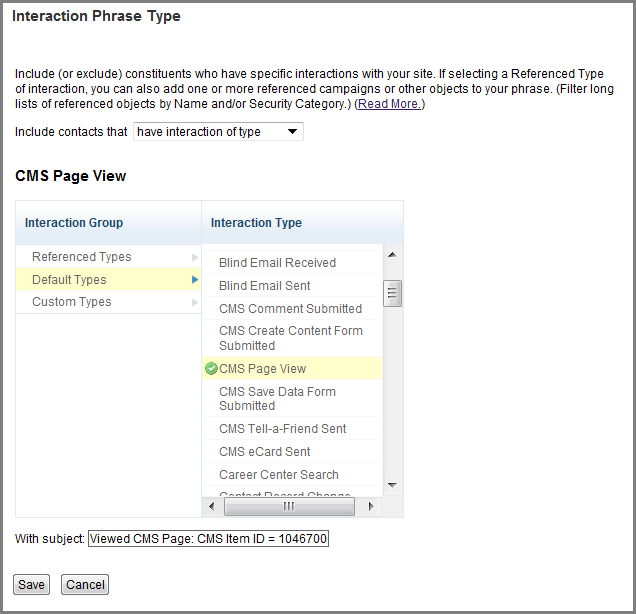
- In the With Subject
field, enter the page ID of the interaction types using the Interaction
Subject in the table below.
(To determine the Item IDs, see
To locate item IDs for querying basic interaction types.)
INTERACTION TYPE
INTERACTION SUBJECT
CMS Comment Submitted
Created CMS Comment: CMS Item ID = CommentID
CMS Create Content Form Submitted
Created CMS item: CMS Item ID = ItemID
CMS Page View
Viewed CMS Page: CMS Item ID = ItemID
CMS Save Data Form Submitted
Submitted CMS Save Data Form: CMS Item ID = ItemID
CMS Tell-a-Friend Sent
Sent CMS item: CMS Item ID = ItemID
CMS eCard Sent
Sent CMS eCard: CMS Item ID = EcardID
- Click Save to return to the Query Details window.
- Click Save Query.
- Click Run Query in the lower, right-hand corner of the Query Details window. A list of all constituent's who have performed the selected interaction (i.e. page visit, eCard sent) displays.
- Click the View User icon to open their Consituent360 record and view the number of interactions on either the Profile or Interactions tab.
To locate item IDs for querying basic interactions
When querying on basic interaction types (except web site visits), you must enter the item ID for the tagged page that you are querying against. (See step 8 in the procedure above.) You obtain the ID in CMS on the status page for the item.
Note: To query on eCards in a situation where you have more than one eCard on a page, each eCard has its own ID as well as the master page. Select the ID for the individual eCard and not the master page.
- In CMS, click Reports and Tools > All Reports and Tools....
- In the Design/Setup area, click Webpage Visit Interactions.
- In the Title column, click the page name link. The Properties tab for that page displays.
- Copy and
paste the number after the equals sign at the end of the URL.

OR
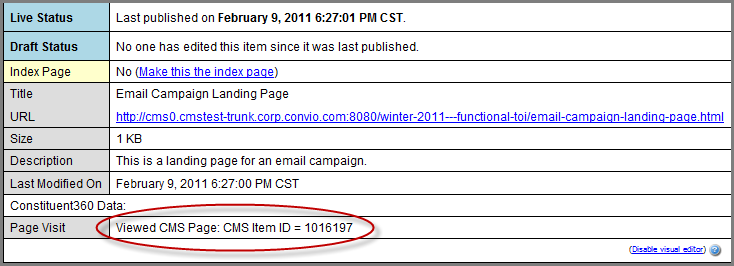
Page visit IDs are also located in the Page Visit field on the Status page:
- Create a query on CMS interactions.
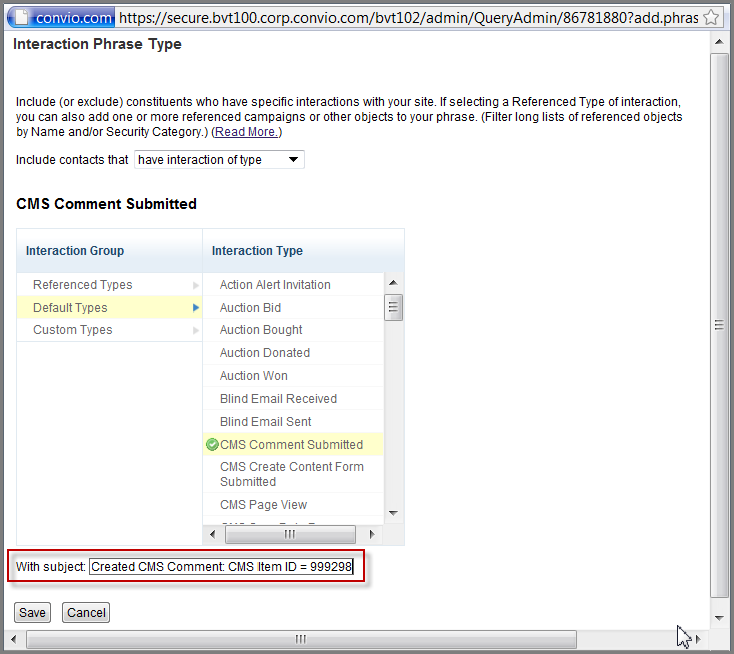
- Use the ID to complete the
With Subject field using the appropriate
Interaction Subject from the table above.
- Click Run Query in the lower, right-hand corner of the Query Details window. A list of all constituent's who have performed the selected interaction (i.e. page visit, eCard sent) displays.
- Click the View User icon to open their Consituent360 record and view the number of interactions on either the Profile or Interactions tab.
To view summary statistical data on site visits, comments submitted, and content posted
- In the Convio Administration menu, click Data Management > Query. The Query List page displays.
- Click Create a New Query. The New Query page displays.
- Enter a name and description, and select a security category.
- Click Save. The Query Details page displays.
- In the Field Type
drop-down menu, select CMS Web Site Information.
Note: If you do not see the CMS Web Site Information fields, it has not been configured for your site. Contact Convio Support to enable this feature.
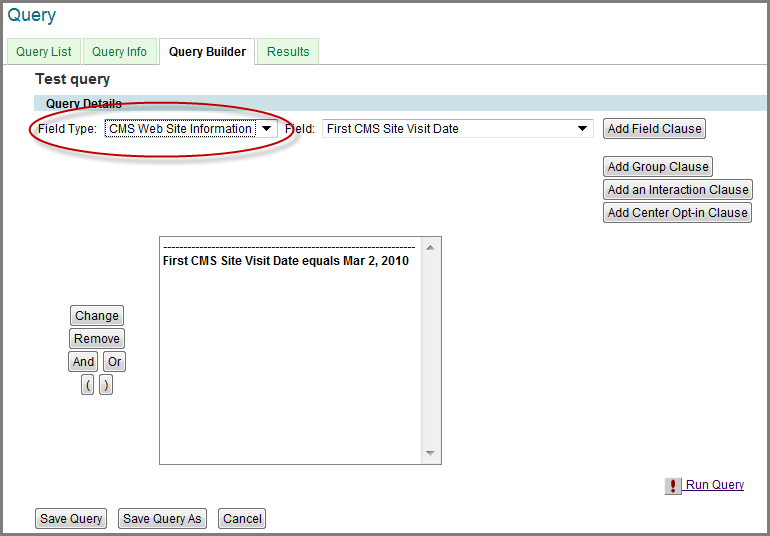
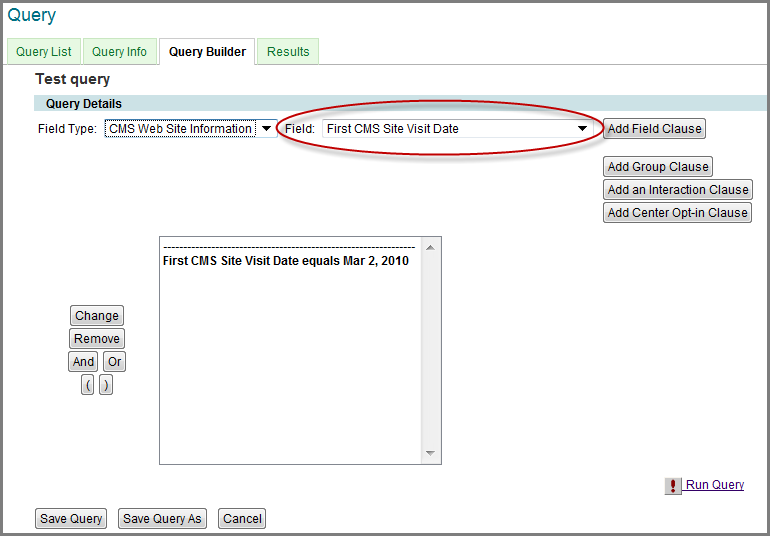
- In the Field
drop-down menu, select any of the interactions.
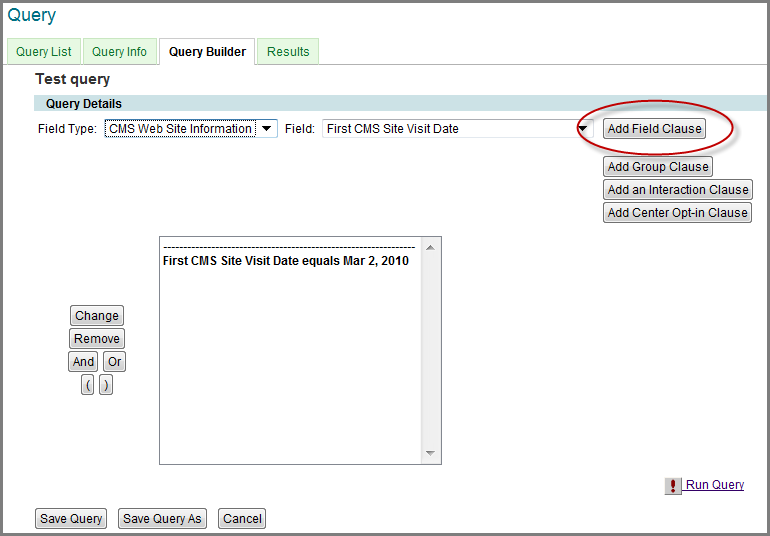
- Click Add Field Clause.
The clause displays in the query editor.
- Click Save to return to the Query Details window.
- Click Save Query.
- Click Run Query
in the lower, right-hand corner of the Query Details
window.
A list of all constituent's who have performed the selected interaction (i.e. page visit, eCard sent) displays. - Click the View User icon to open their Consituent360 record and view the number of interactions on either the Profile or Interactions tab.
Reporting on CMS Interactions
Reporting on the frequency and dates of CMS interactions allows you to segment your constituents into groups. You can then target these groups for special communications and promotions. For example, if you identify a group that is very active (i.e. they visit the site often and have even submitted a Create Content Form) but has not made a donation recently, you can send them an ask letter. Report Writer's Interaction Details report allows you to report on
- First and Last CMS Site Visit Dates
- Lifetime, Previous Year, and Year-to-Date CMS Site Visit Counts
- Last CMS Comment Submission Dates
- Lifetime, Previous Year, and Year-to-Date CMS Comment Submission Counts
- Last CMS Create Content Form Submission Dates
- Lifetime, Previous Year, and Year-to-Date CMS Create Content Form Submission Counts
To run the CMS Interaction Details Report
This topic explains how to customize the Interaction Details report for CMS interactions in Report Writer. For more information on using Report Writer, see Creating an Interaction Details Report.
Report Writer's Create a New Report Navigator includes the following process pages, in order:
- Select Report Type
- Select Columns
- Order and Rename Columns
- Select Sort Order
- Configure Filters
- Identify Report
- Review Criteria Summary
The following lists the points within the process where you customize the report for CMS interactions:
- In the Select Columns step, scroll
down to CMS Web Site Information to select the interactions
you would like to report on. These determine the columns for the
report.

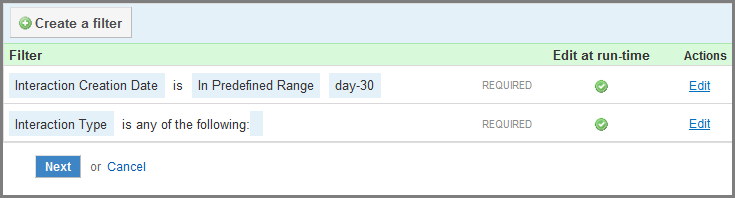
- In the Configure Filters step,
click Interaction Type to add an interaction filter (such
as Action Alerts or CMS Page Views). This determines the rows
(constituents) for the report. For example if you select action alerts, you
will have a list of constituents that have responded to action alerts (rows)
and interacted with CMS pages (columns). If you select CMS Page View as a
filter, and CMS interactions for the columns, the reports will show CMS
information about just constituents who have viewed CMS pages.